Imagine this: it’s late at night, you’re scrolling through your phone, and suddenly, a vibrant glow catches your eye. It’s not a UFO: it’s just your Samsung device showcasing its fabulous edge lighting feature. This distinctive design not only enhances visual appeal but also delivers notifications in style. In this guide, we’ll jump into the world of edge lighting on Samsung, exploring its benefits, customization options, and even troubleshooting tips, without needing to summon your inner tech guru. Let’s light things up.
What Is Edge Lighting?
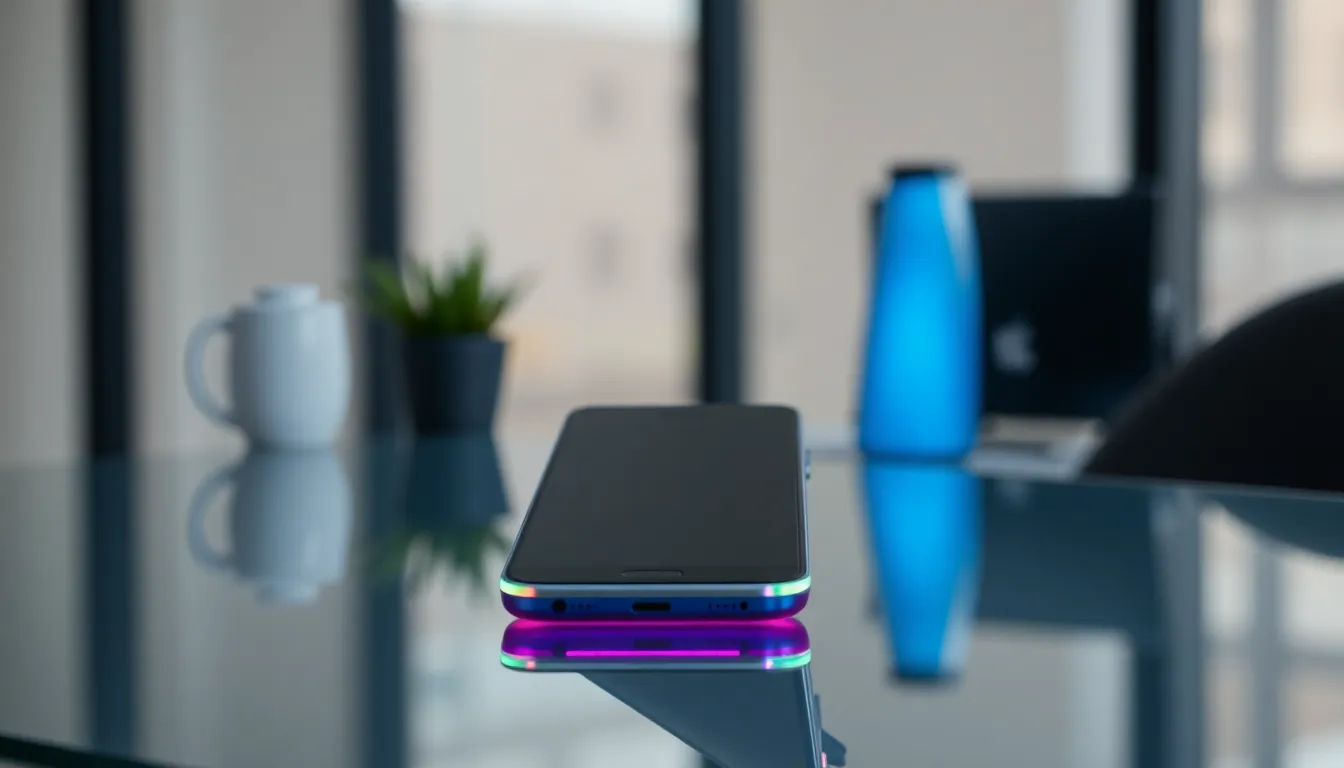
Edge lighting is a design feature found on various Samsung devices, particularly in its flagship smartphone lines. This technique illuminates the edges of the screen, creating a soft, glowing effect that enhances the overall look of notifications. When a user receives a call, text, or any message from apps, the edges of the screen light up in customizable colors, adding flair to alerts while simultaneously improving visibility in low-light conditions.
It’s important to note that this feature isn’t just for the sake of aesthetics. Edge lighting can also improve user experience by allowing individuals to discreetly notice notifications without needing to unlock their devices. Think of it as your phone’s way of gently tapping you on the shoulder when something important pops up.
Benefits of Edge Lighting on Samsung Devices
Edge lighting on Samsung devices brings a plethora of benefits that users might not even realize initially. Here are several reasons why edge lighting can enhance one’s experience:
- Aesthetic Appeal: Let’s face it: devices can be boring without a bit of flair. Edge lighting transforms a regular-looking smartphone into a stylish accessory, just by adding a touch of color around the screen.
- Enhanced Notifications: In a world filled with distractions, it’s vital to catch important notifications. Edge lighting allows users to effortlessly notice alerts at a glance, providing a smart and subtle reminder.
- Customization Options: Samsung allows users to customize their edge lighting settings. This means choosing different colors for different notifications. Whether one prefers a calming blue for messages and a fiery red for alarms, personalization is straightforward and fun.
- Battery Efficient: Contrary to popular belief, utilizing edge lighting doesn’t hog battery life. When set correctly, it illuminates only during alerts, conserving power while still providing functionality.
How to Enable Edge Lighting on Samsung Smartphones
Enabling edge lighting on Samsung devices is a breeze. Here’s how you can get started:
- Access Settings: Navigate to the Settings app from your home screen or app drawer.
- Select Display: In the settings menu, find and select Display. It’s usually located in the top section of the menu.
- View Edge Screen Options: Look for Edge Screen. Tap on this option, and you’ll be greeted with various settings related to edge features.
- Enable Edge Lighting: Locate the Edge Lighting option and toggle it on. You might want to explore additional settings here for further customization.
- Customize Notification Settings: Finally, customize what gets the glowing effect. You can set preferences based on apps, ensuring that only the most important alerts light up the edges.
Customization Options for Edge Lighting
Customization is the spice of life, especially about edge lighting on Samsung devices. Here are popular options users can explore:
- Color Selection: By default, users can select from a wide array of colors for edge lighting. This means if one prefers a calming aqua blue for their text messages, it’s as simple as choosing that hue in the settings.
- Lighting Style: Samsung also allows users to select different lighting styles. Options might include rainbow effects, pulse lighting, or even a steady glow. Each one serves to enhance the notifications in a unique way.
- Width of the Light: Users can customize the width of the edge lighting. A thicker glow can create a bold statement while a thin one offers a subtler effect.
- Duration: How long should the edge light remain illuminated? Samsung provides the option to set how long users would like the notification light to stay active before vanishing.
Troubleshooting Common Edge Lighting Issues
Like any tech feature, edge lighting might occasionally encounter issues. Here are common problems and how users can troubleshoot them:
- Edge Lighting is Not Showing Up: If the edge lighting isn’t functioning when notifications arrive, users should first ensure that the feature is enabled in settings. Next, confirm that notifications for specific apps are allowed.
- Colors aren’t Changing: Sometimes, the edge lighting colors don’t appear as set. In such cases, it could be worth resetting the color settings to ensure they’re applied correctly. Switching to a different color and then back can also reset any minor bugs.
- Inconsistent Lighting during Incoming Calls: Users may experience issues with edge lighting only sometimes lighting up during calls, depending on the settings for notifications. Ensure the settings allow for this feature during calls.
- Performance Issues: If the device lags when edge lighting is activated, it might be beneficial to clear the cache or restart the device. This often resolves minor software glitches.
Future of Edge Lighting Technology
Looking ahead, the future appears bright, literally, for edge lighting technology. As Samsung continues to innovate, users can expect:
- More Custom Options: Anticipated advances may include more extensive libraries of colors and lighting effects. Personalization seems to be the name of the game.
- Integration with Smart Home Devices: Edge lighting could potentially integrate with smart home technology, allowing for custom lighting schemes in sync with the user’s environment.
- Adaptive Lighting: Future upgrades might see edge lighting adapt to the user’s schedule or preferences, changing colors based on the time of day or the user’s activity, now that would be cool.